

Introduction
Why Online Safety Is Essential in Today’s Digital World
In today’s connected world, almost every activity—shopping, banking, learning, and communicating—happens online. While the internet offers incredible convenience, it also comes with risks. Understanding online safety is essential to protect your personal information, devices, and digital reputation.
Common Risks Beginners Face Online
For beginners, the digital world can be intimidating. Some common risks include:
Scams and Phishing
- Fraudulent emails, messages, or websites designed to steal personal or financial information
- Fake offers or urgent requests that pressure users into giving sensitive data
Malware and Viruses
- Malicious software that can slow down devices, steal information, or lock files for ransom
- Often spread through unsafe downloads, email attachments, or suspicious links
Privacy Breaches
- Accidental sharing of personal information on social media or apps
- Weak passwords or unsecured accounts that make it easier for hackers to access your data
What Readers Will Learn from This Guide
This guide is designed to help beginners navigate the online world safely. By reading, you will learn:
- How to create strong passwords and enable two-factor authentication
- Ways to identify scams, phishing attempts, and unsafe links
- How to manage privacy settings on social media and apps
- Best practices to stay safe while browsing, communicating, and sharing online
Understanding Online Threats
Types of Online Threats
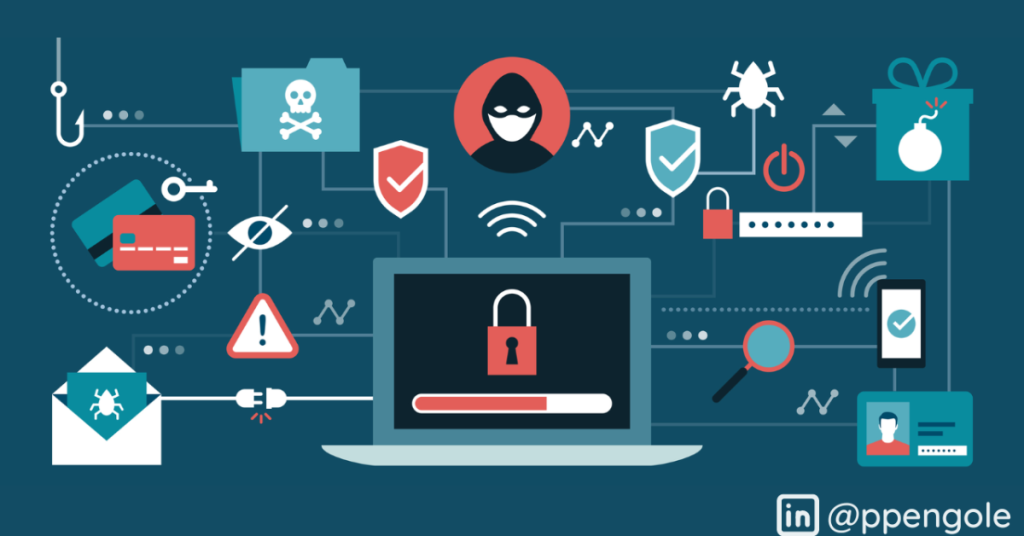
Online threats come in many forms, and knowing them is the first step to staying safe.
Phishing
- Fraudulent emails, messages, or websites designed to trick you into revealing passwords or financial information
- Often appear urgent or mimic legitimate organizations
Malware
- Malicious software that can infect your device, steal information, or slow down performance
- Can be downloaded unknowingly through attachments, unsafe websites, or pop-ups
Ransomware
- A type of malware that locks your files or device until a ransom is paid
- Often spread through phishing emails or compromised downloads
Identity Theft
- Criminals steal personal information like Social Security numbers, credit card info, or login credentials
- Can lead to financial loss, fraud, and long-term damage to your credit
How These Threats Can Affect Personal and Financial Information
- Unauthorized access to bank accounts or credit cards
- Theft of sensitive personal information for fraudulent activity
- Loss of important files or data due to ransomware attacks
- Damage to online reputation or social media accounts
The Importance of Proactive Safety Measures
Being proactive is key to avoiding online threats. Beginners should:
- Use strong, unique passwords and enable two-factor authentication
- Keep devices and software up to date to fix vulnerabilities
- Be cautious of suspicious links, attachments, and websites
- Regularly back up important data to secure locations
Creating Strong Passwords

Tips for Generating Secure Passwords
A strong password is your first line of defense against online threats. Beginners should follow these tips:
Characteristics of Strong Passwords
- At least 12 characters long
- A mix of uppercase and lowercase letters, numbers, and symbols
- Unrelated to personal information like birthdays, names, or pets
Strategies to Create Strong Passwords
- Use random combinations of words, numbers, and symbols
- Consider creating a passphrase (a series of unrelated words) that’s easy to remember but hard to guess
- Update passwords periodically to maintain security
Avoiding Common Password Mistakes
Many beginners unintentionally weaken their online security. Avoid these mistakes:
- Using the same password for multiple accounts
- Choosing simple, easily guessable passwords like “123456” or “password”
- Sharing passwords with friends, family, or coworkers
- Writing passwords on sticky notes or unsecured files
Using Password Managers to Store and Manage Passwords
Password managers help keep track of multiple accounts securely, making it easier to follow best practices.
Benefits of Password Managers
- Generate strong, random passwords for each account
- Store login information securely in an encrypted format
- Autofill passwords safely to avoid typing errors
Popular Beginner-Friendly Options
- LastPass – simple interface with free and paid plans
- 1Password – secure and easy-to-use across devices
- Bitwarden – free, open-source option for secure password management
Two-Factor Authentication (2FA)
How 2FA Works
Two-Factor Authentication adds an extra layer of security to your online accounts.
Basic Concept
- After entering your password (first factor), you provide a second form of verification (second factor)
- The second factor is usually:
- A code sent via SMS or email
- A code generated by an authentication app (e.g., Google Authenticator, Authy)
- A hardware security key
How It Protects You
- Even if a hacker steals your password, they cannot access your account without the second factor
- Makes accounts significantly harder to compromise
Accounts That Should Always Have 2FA Enabled
- Email accounts – gateway to many other online accounts
- Banking and financial apps – protect sensitive financial data
- Social media accounts – prevent unauthorized posts or identity theft
- Cloud storage and work-related platforms – safeguard documents and sensitive files
Benefits of Using 2FA for Extra Protection
- Provides an additional security layer beyond just a password
- Reduces the risk of account hacks and identity theft
- Gives peace of mind, especially for accounts with sensitive personal or financial information
- Often free and easy to enable for most services
Keeping Devices and Software Updated
Why Software Updates Are Crucial for Security
Keeping your devices and software up to date is one of the simplest ways to protect against cyber threats.
Key Reasons
- Updates patch vulnerabilities that hackers can exploit
- Improve performance and fix bugs that may cause errors
- Add new security features and protection against malware
Automatic Updates vs. Manual Updates
Beginners should understand the difference between automatic and manual updates:
Automatic Updates
- Devices and software update themselves without user intervention
- Ensures you are always protected with the latest security patches
- Recommended for beginners who may forget to check for updates
Manual Updates
- User-initiated updates for specific apps, software, or devices
- Allows control over timing but requires consistent attention
- Useful for devices with limited storage or slower internet connections
Recommended Antivirus and Security Software
Antivirus and security software provide an additional layer of protection:
Popular Beginner-Friendly Options
- Windows Defender – built-in for Windows devices, free and effective
- Avast – free and paid versions with real-time protection
- Bitdefender – strong malware detection with user-friendly interface
- Malwarebytes – effective for detecting and removing malware
Best Practices
- Keep antivirus software updated regularly
- Run periodic scans to check for malware
- Avoid downloading software from unknown sources
Recognizing Suspicious Links and Emails
Common Signs of Phishing Emails and Scam Messages
Phishing emails and scam messages try to trick you into revealing personal or financial information. Beginners should watch for:
Red Flags
- Urgent or threatening language (e.g., “Your account will be closed!”)
- Unknown or misspelled sender addresses
- Poor grammar, spelling mistakes, or unusual formatting
- Unexpected attachments or links
- Requests for sensitive information like passwords, credit card numbers, or Social Security numbers
How to Verify Website Safety Before Entering Personal Info
Before entering sensitive data, ensure the website is secure:
Simple Checks
- Look for HTTPS in the URL and a padlock icon in the address bar
- Hover over links to see the actual URL before clicking
- Avoid sites with unusual domain names or extra characters
- Use browser safety tools or extensions that warn about suspicious websites
Steps to Take if You Accidentally Click a Suspicious Link
Even if you accidentally click a suspicious link, quick action can reduce risk:
Immediate Actions
- Disconnect from the internet to prevent malware from spreading
- Do not enter any login or financial information
- Run a full antivirus or anti-malware scan
- Change passwords for accounts that may be affected
- Monitor bank statements and accounts for unusual activity
You may also like to read these posts:
How to Hire Talent: A Step-by-Step Guide for Employers
Top Employee Workplace Trends Shaping the Future of Work
Beginner Workout Plans: A Complete Guide to Start Your Fitness Journey
Breaking Latest Technology News from Around the World
Top Beginner Tech Tutorials for Learning Technology Fast
Recognizing Suspicious Links and Emails
Common Signs of Phishing Emails and Scam Messages
Phishing emails and scam messages try to trick you into revealing personal or financial information. Beginners should watch for:
Red Flags
- Urgent or threatening language (e.g., “Your account will be closed!”)
- Unknown or misspelled sender addresses
- Poor grammar, spelling mistakes, or unusual formatting
- Unexpected attachments or links
- Requests for sensitive information like passwords, credit card numbers, or Social Security numbers
How to Verify Website Safety Before Entering Personal Info
Before entering sensitive data, ensure the website is secure:
Simple Checks
- Look for HTTPS in the URL and a padlock icon in the address bar
- Hover over links to see the actual URL before clicking
- Avoid sites with unusual domain names or extra characters
- Use browser safety tools or extensions that warn about suspicious websites
Steps to Take if You Accidentally Click a Suspicious Link
Even if you accidentally click a suspicious link, quick action can reduce risk:
Immediate Actions
- Disconnect from the internet to prevent malware from spreading
- Do not enter any login or financial information
- Run a full antivirus or anti-malware scan
- Change passwords for accounts that may be affected
- Monitor bank statements and accounts for unusual activity
Faqs:
Why are online safety tips important?
Online safety tips help protect your personal information, prevent scams, and keep your devices secure while using the internet.
How can beginners protect their accounts online?
Beginners should use strong, unique passwords, enable two-factor authentication, and avoid sharing personal details on unknown websites.
What should I do if I receive a suspicious email or message?
Do not click on links or download attachments. Delete the message and report it as spam or phishing if possible.
Is it safe to use public Wi-Fi?
Public Wi-Fi can be risky. Avoid logging into banking or personal accounts on public networks, or use a VPN for extra protection.
How can I tell if a website is safe?
Check for “https://” in the website URL, look for a padlock icon in the browser, and avoid sites that ask for unnecessary personal information.
Conclusion
Staying safe online is essential in today’s digital world, especially for beginners. By following these online safety tips—such as using strong passwords, enabling two-factor authentication, avoiding suspicious links, and protecting personal information—you can reduce risks and browse the internet with confidence.
Online safety is not about being afraid of technology, but about using it wisely. Start with small habits, stay alert, and keep learning. With consistent practice, you can enjoy the benefits of the internet while keeping your data and privacy secure.


