

Introduction
Importance of Technology in Daily Life
Technology is part of almost everything we do today. It helps us:
- Communicate with friends, family, and colleagues
- Access information and learn new skills online
- Shop, pay bills, and manage finances easily
- Work efficiently and run small businesses
- Enjoy entertainment like videos, music, and games
Even basic devices like smartphones, computers, and apps make daily tasks faster and simpler.
Challenges Beginners Face
Learning technology can feel confusing or intimidating. Beginners often:
- Don’t understand common tech terms
- Fear making mistakes or “breaking” something
- Feel overwhelmed by updates, notifications, or settings
- Don’t know where to start or what to learn first
These challenges are normal, and step-by-step guidance can make learning much easier.
How Learning Online Makes Tech Easy and Accessible
Online learning allows you to:
- Learn at your own pace, anywhere, anytime
- Revisit tutorials or guides as often as needed
- Access simple explanations, videos, and exercises
- Build confidence by practicing in a safe environment
Target Audience
This guide is for anyone who wants to feel confident using technology, including:
- Students learning tech for school or work
- Seniors who want to use devices and apps easily
- Non-technical users who feel intimidated by digital tools
With clear instructions and practical tips, this guide makes technology approachable for everyone.
Understanding Basic Technology Concepts
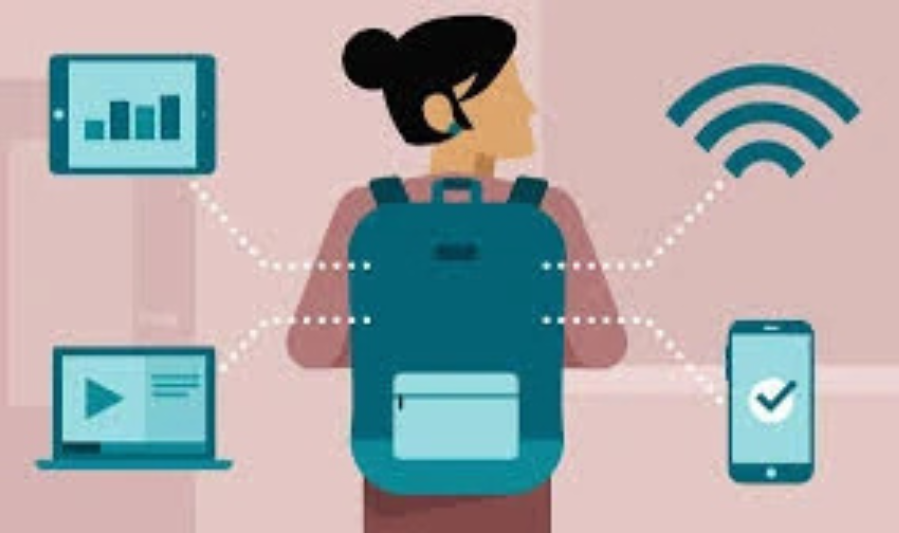
Hardware vs. Software
Hardware
Hardware is the physical part of a device that you can touch.
Examples:
- Computers, laptops, smartphones
- Keyboard, mouse, screen
- Printer, speakers
Software
Software is the programs and apps that run on hardware. It tells the device what to do.
Examples:
- Microsoft Word, web browsers, games
- Mobile apps like WhatsApp, YouTube
What Is the Internet and How It Works
The internet is a global network connecting computers and devices worldwide.
It allows you to:
- Send messages and emails
- Browse websites and search for information
- Watch videos and listen to music
- Use online apps and services
Think of it as a giant library and communication network accessible from almost any device.
Apps and Programs: Purpose and Examples
- Software is a general term for any program on a device.
- Programs are software installed on computers.
- Apps are small programs for smartphones or tablets.
Examples:
- Computer program: Microsoft Word, Excel
- Mobile app: WhatsApp, Google Maps
- Browser: Google Chrome, Safari
Apps and programs help you communicate, learn, work, and have fun.
Common Tech Terms Explained Simply
Wi-Fi
Wi-Fi lets your device connect to the internet without cables.
Browser
A browser is a program used to visit websites, such as Chrome, Safari, or Edge.
Cloud
Cloud storage lets you save files online and access them from any device, e.g., Google Drive or Dropbox.
Download
Downloading means saving files or apps from the internet to your device.
Update
An update is a new version of software or apps that fixes problems or adds features.
Getting Started with Devices
3.1 Smartphones
Android vs. iPhone Basics
- Android: Made by many brands (Samsung, Xiaomi, etc.), offers more customization options.
- iPhone (iOS): Made by Apple, known for simplicity and smooth performance.
Both types can make calls, send messages, use apps, browse the internet, and take photos.
Home Screen, Apps, and Settings
- Home Screen: The main screen showing app icons.
- Apps: Small programs for messaging, browsing, social media, or navigation.
- Settings: Control Wi-Fi, brightness, sound, security, and other phone options.
Making Calls, Sending Messages, and Taking Photos
- Calls: Open the phone app, select a contact, and press Call.
- Messages: Open the messaging app, type your message, and send.
- Camera: Open the camera app to take photos or record videos.
Beginner Tips for Exploring Features Safely
- Explore one app at a time to avoid confusion.
- Avoid changing settings unless you know their purpose.
- Keep your phone updated to improve performance and security.
- Ask a trusted friend or family member if unsure about a feature.
3.2 Computers and Laptops
Parts of a Computer
- Monitor/Screen: Shows what the computer is doing.
- Keyboard: Type letters, numbers, and commands.
- Mouse/Touchpad: Point, click, and navigate.
- CPU/Tower (desktops): The main component that runs programs.
Keyboard, Mouse, and Touchpad Basics
- Keyboard: Type text, numbers, and shortcuts.
- Mouse/Touchpad: Move the pointer, click, double-click, and scroll.
Files, Folders, and Desktop Navigation
- Files: Documents, images, videos, and programs stored on your computer.
- Folders: Containers to organize files.
- Desktop: The main screen where you can access files, folders, and programs.
Opening, Closing, and Switching Programs
- Opening: Double-click an icon or select a program from the menu.
- Closing: Click the “X” in the program window or use the menu option.
- Switching: Use Alt + Tab (Windows) or Command + Tab (Mac) to move between open programs.
Internet Basics for Beginners
Connecting to Wi-Fi
Wi-Fi allows your device to connect to the internet without cables.
Steps to connect:
- Open Settings on your phone, tablet, or computer.
- Select Wi-Fi or Network.
- Choose a Wi-Fi network from the list.
- Enter the password if required, then connect.
Once connected, your device can access websites, apps, and online services.
Browsers and Search Engines
What Is a Browser?
A browser is a program used to visit websites. Examples: Chrome, Safari, Edge, Firefox.
What Is a Search Engine?
A search engine helps you find information online. Example: Google.
- Open your browser.
- Type your question or keywords in the search box.
- Press Enter to see results.
Tabs, Links, and Bookmarks
Tabs
Tabs let you open multiple web pages in one browser window.
Links
Links are clickable text or images that take you to another page or website.
Bookmarks
Bookmarks save your favorite websites so you can easily return later.
Safe Browsing and Avoiding Scams
- Visit trusted websites only.
- Look for “https://” in web addresses (secure sites).
- Avoid clicking suspicious links or pop-ups.
- Don’t share personal information like passwords or banking details online.
- Log out of accounts when using public devices.
Streaming and Online Video Basics
- Streaming allows you to watch videos or listen to music directly online without downloading.
- Popular platforms: YouTube, Netflix, Spotify.
- Tips for beginners:
- Check your internet speed for smooth playback
- Use the search bar to find videos
- Pause, play, or adjust volume using on-screen controls
Email and Online Communication
Why Email Is Important
Email is a fast and reliable way to send messages, documents, and photos over the internet.
It is useful for:
- Communicating with friends, family, teachers, or colleagues
- Receiving bills, confirmations, and updates
- Keeping a record of messages for future reference
Creating an Email Account
To create an email account:
- Choose an email provider (Gmail, Outlook, Yahoo).
- Go to the provider’s website or app.
- Click Sign Up or Create Account.
- Enter your name, choose an email address, and create a password.
- Verify your account following the instructions.
Sending, Replying, Forwarding, and Deleting Emails
- Sending: Click Compose or New Email, type the recipient’s email, write a subject, add a message, and click Send.
- Replying: Open an email and click Reply to respond.
- Forwarding: Open an email and click Forward to send it to someone else.
- Deleting: Select the email and click Delete to remove it from your inbox.
Attaching and Downloading Files Safely
- Attachments: Files like photos, documents, or PDFs sent with emails.
- Downloading attachments: Click the file and select Download to save it on your device.
- Safety tips: Only open attachments from trusted senders to avoid viruses or scams.
Video Calls (Zoom, Google Meet, Teams)
Video calls let you see and talk to someone online.
Steps to join a video call:
- Install the app on your device (Zoom, Google Meet, or Teams).
- Open the app and join a meeting using a link or meeting ID.
- Use the microphone to speak and the camera to show video.
- Learn basic features:
- Mute/unmute your microphone
- Turn video on/off
- Share your screen if needed
You may also like to read these posts:
How to Hire Talent: A Step-by-Step Guide for Employers
Top Employee Workplace Trends Shaping the Future of Work
Beginner Workout Plans: A Complete Guide to Start Your Fitness Journey
Breaking Latest Technology News from Around the World
Top Beginner Tech Tutorials for Learning Technology Fast
Online Learning Resources
YouTube Tutorials
YouTube is a great place to learn skills visually.
- Search for tutorials on your topic, e.g., “basic Excel for beginners” or “how to use WhatsApp.”
- Look for recent videos with good ratings to ensure accurate content.
- Pause, rewind, or replay sections to learn at your own pace.
Free Online Courses
Several platforms offer structured lessons and exercises for free:
- Coursera: Offers beginner courses from universities (some free, some paid).
- Khan Academy: Free courses for students in math, science, computing, and more.
- Udemy: Free and paid courses on various skills like tech, business, or design.
Tips: Start with free beginner courses before moving to advanced lessons.
Blogs, Guides, and Forums
- Blogs and guides: Step-by-step articles written for beginners.
- Forums: Communities like Reddit or Stack Exchange where you can ask questions and get answers.
- Search for topics like: “how to use email for beginners” or “safe online browsing tips.”
Practice Exercises and Mini-Projects
- Apply what you learn by doing small, practical exercises.
- Examples:
- Send test emails to yourself
- Create a simple document or spreadsheet
- Try a mini-project like organizing files on your computer
- Practicing helps you remember skills better than just reading or watching tutorials.
Tips for Choosing Beginner-Friendly Courses
- Check the course description to ensure it’s labeled for beginners.
- Look for short lessons that don’t overwhelm you.
- Prefer courses with videos, screenshots, or step-by-step guides.
- Read reviews to see if other beginners found it helpful.
- Take your time and don’t rush; learning at your own pace works best.
Faqs:
Can I learn tech basics online even if I’m not tech-savvy?
Yes! Online tutorials are designed for beginners. You can learn at your own pace, step by step, without feeling overwhelmed.
Do I need expensive devices to start learning online?
Not at all. Basic smartphones, tablets, or laptops are enough to follow online tech tutorials. Focus on learning skills, not the latest gadgets.
How do I stay safe while learning tech online?
Use strong passwords, avoid suspicious links, don’t share personal information, and keep your apps and devices updated regularly.
What are the easiest apps or tools for beginners to learn tech basics?
Start with simple apps like WhatsApp (messaging), YouTube (tutorials), Google Maps (navigation), and Zoom (video calls).
How can I learn tech basics quickly online?
Practice daily, follow step-by-step tutorials, watch videos for visual guidance, and don’t hesitate to ask for help when needed.
Conclusion
Learning tech basics online is easier than ever, even for complete beginners. By starting small, practicing regularly, and using trusted online resources, anyone can gain confidence with devices, apps, and the internet.
Remember, technology is a tool designed to make life simpler, more connected, and more productive. Take it one step at a time, explore at your own pace, and don’t be afraid to make mistakes—every step brings you closer to becoming tech-savvy.